LISENSI ARTIKEL
Silakan Anda cari artikel atau post yang diinginkan melalui searchbox di bawah, apabila tidak ada silakan request ke kami tentang artikel yang dimaksud.
PC magazine.
Before you spend a dime on security, there are many precautions you can take that will protect you against the most common threats.
1. Check Windows Update and Office Update regularly (_http://office.microsoft.com/productupdates); have your Office CD ready. Windows Me, 2000, and XP users can configure automatic updates. Click on the Automatic Updates tab in the System control panel and choose the appropriate options.
2. Install a personal firewall. Both SyGate (_www.sygate.com) and ZoneAlarm (_www.zonelabs.com)or online armor offer free versions.
3. Install a free spyware blocker. Our Editors' Choice ("Spyware," April 22) was SpyBot Search & Destroy (_http://security.kolla.de). SpyBot is also paranoid and ruthless in hunting out tracking cookies.
4. Block pop-up spam messages in Windows NT, 2000, or XP by disabling the Windows Messenger service (this is unrelated to the instant messaging program). Open Control Panel | Administrative Tools | Services and you'll see Messenger. Right-click and go to Properties. Set Start-up Type to Disabled and press the Stop button. Bye-bye, spam pop-ups! Any good firewall will also stop them.
5. Use strong passwords and change them periodically. Passwords should have at least seven characters; use letters and numbers and have at least one symbol. A decent example would be f8izKro@l. This will make it much harder for anyone to gain access to your accounts.
6. If you're using Outlook or Outlook Express, use the current version or one with the Outlook Security Update installed. The update and current versions patch numerous vulnerabilities.
7. Buy antivirus software and keep it up to date. If you're not willing to pay, try Grisoft AVG Free Edition (Grisoft Inc., w*w.grisoft.com). And doublecheck your AV with the free, online-only scanners available at w*w.pandasoftware.com/activescan and _http://housecall.trendmicro.com.
8. If you have a wireless network, turn on the security features: Use MAC filtering, turn off SSID broadcast, and even use WEP with the biggest key you can get. For more, check out our wireless section or see the expanded coverage in Your Unwired World in our next issue.
9. Join a respectable e-mail security list, such as the one found at our own Security Supersite at _http://security.ziffdavis.com, so that you learn about emerging threats quickly and can take proper precautions.
10. Be skeptical of things on the Internet. Don't assume that e-mail "From:" a particular person is actually from that person until you have further reason to believe it's that person. Don't assume that an attachment is what it says it is. Don't give out your password to anyone, even if that person claims to be from "support."
Source : PC Magazine UK
Berikan feedbackmu kepada kami dengan memberikan rating dan komentar tentang artikel ini, thanks..^^b Baca Selengkapnya..
10 reasons why PCs crash U must Know
Fatal error: the system has become unstable or is busy," it says. "Enter to return to Windows or press Control-Alt-Delete to restart your computer. If you do this you will lose any unsaved information in all open applications."
You have just been struck by the Blue Screen of Death. Anyone who uses Mcft Windows will be familiar with this. What can you do? More importantly, how can you prevent it happening?
1 Hardware conflict
The number one reason why Windows crashes is hardware conflict. Each hardware device communicates to other devices through an interrupt request channel (IRQ). These are supposed to be unique for each device.
For example, a printer usually connects internally on IRQ 7. The keyboard usually uses IRQ 1 and the floppy disk drive IRQ 6. Each device will try to hog a single IRQ for itself.
If there are a lot of devices, or if they are not installed properly, two of them may end up sharing the same IRQ number. When the user tries to use both devices at the same time, a crash can happen. The way to check if your computer has a hardware conflict is through the following route:
* Start-Settings-Control Panel-System-Device Manager.
Often if a device has a problem a yellow '!' appears next to its description in the Device Manager. Highlight Computer (in the Device Manager) and press Properties to see the IRQ numbers used by your computer. If the IRQ number appears twice, two devices may be using it.
Sometimes a device might share an IRQ with something described as 'IRQ holder for PCI steering'. This can be ignored. The best way to fix this problem is to remove the problem device and reinstall it.
Sometimes you may have to find more recent drivers on the internet to make the device function properly. A good resource is www.driverguide.com. If the device is a soundcard, or a modem, it can often be fixed by moving it to a different slot on the motherboard (be careful about opening your computer, as you may void the warranty).
When working inside a computer you should switch it off, unplug the mains lead and touch an unpainted metal surface to discharge any static electricity.
To be fair to Mcft, the problem with IRQ numbers is not of its making. It is a legacy problem going back to the first PC designs using the IBM 8086 chip. Initially there were only eight IRQs. Today there are 16 IRQs in a PC. It is easy to run out of them. There are plans to increase the number of IRQs in future designs.
2 Bad Ram
Ram (random-access memory) problems might bring on the blue screen of death with a message saying Fatal Exception Error. A fatal error indicates a serious hardware problem. Sometimes it may mean a part is damaged and will need replacing.
But a fatal error caused by Ram might be caused by a mismatch of chips. For example, mixing 70-nanosecond (70ns) Ram with 60ns Ram will usually force the computer to run all the Ram at the slower speed. This will often crash the machine if the Ram is overworked.
One way around this problem is to enter the BIOS settings and increase the wait state of the Ram. This can make it more stable. Another way to troubleshoot a suspected Ram problem is to rearrange the Ram chips on the motherboard, or take some of them out. Then try to repeat the circumstances that caused the crash. When handling Ram try not to touch the gold connections, as they can be easily damaged.
Parity error messages also refer to Ram. Modern Ram chips are either parity (ECC) or non parity (non-ECC). It is best not to mix the two types, as this can be a cause of trouble.
EMM386 error messages refer to memory problems but may not be connected to bad Ram. This may be due to free memory problems often linked to old Dos-based programmes.
3 BIOS settings
Every motherboard is supplied with a range of chipset settings that are decided in the factory. A common way to access these settings is to press the F2 or delete button during the first few seconds of a boot-up.
Once inside the BIOS, great care should be taken. It is a good idea to write down on a piece of paper all the settings that appear on the screen. That way, if you change something and the computer becomes more unstable, you will know what settings to revert to.
A common BIOS error concerns the CAS latency. This refers to the Ram. Older EDO (extended data out) Ram has a CAS latency of 3. Newer SDRam has a CAS latency of 2. Setting the wrong figure can cause the Ram to lock up and freeze the computer's display.
Mcft Windows is better at allocating IRQ numbers than any BIOS. If possible set the IRQ numbers to Auto in the BIOS. This will allow Windows to allocate the IRQ numbers (make sure the BIOS setting for Plug and Play OS is switched to 'yes' to allow Windows to do this.).
4 Hard disk drives
After a few weeks, the information on a hard disk drive starts to become piecemeal or fragmented. It is a good idea to defragment the hard disk every week or so, to prevent the disk from causing a screen freeze. Go to
* Start-Programs-Accessories-System Tools-Disk Defragmenter
This will start the procedure. You will be unable to write data to the hard drive (to save it) while the disk is defragmenting, so it is a good idea to schedule the procedure for a period of inactivity using the Task Scheduler.
The Task Scheduler should be one of the small icons on the bottom right of the Windows opening page (the desktop).
Some lockups and screen freezes caused by hard disk problems can be solved by reducing the read-ahead optimisation. This can be adjusted by going to
* Start-Settings-Control Panel-System Icon-Performance-File System-Hard Disk.
Hard disks will slow down and crash if they are too full. Do some housekeeping on your hard drive every few months and free some space on it. Open the Windows folder on the C drive and find the Temporary Internet Files folder. Deleting the contents (not the folder) can free a lot of space.
Empty the Recycle Bin every week to free more space. Hard disk drives should be scanned every week for errors or bad sectors. Go to
* Start-Programs-Accessories-System Tools-ScanDisk
Otherwise assign the Task Scheduler to perform this operation at night when the computer is not in use.
5 Fatal OE exceptions and VXD errors
Fatal OE exception errors and VXD errors are often caused by video card problems.
These can often be resolved easily by reducing the resolution of the video display. Go to
* Start-Settings-Control Panel-Display-Settings
Here you should slide the screen area bar to the left. Take a look at the colour settings on the left of that window. For most desktops, high colour 16-bit depth is adequate.
If the screen freezes or you experience system lockups it might be due to the video card. Make sure it does not have a hardware conflict. Go to
* Start-Settings-Control Panel-System-Device Manager
Here, select the + beside Display Adapter. A line of text describing your video card should appear. Select it (make it blue) and press properties. Then select Resources and select each line in the window. Look for a message that says No Conflicts.
If you have video card hardware conflict, you will see it here. Be careful at this point and make a note of everything you do in case you make things worse.
The way to resolve a hardware conflict is to uncheck the Use Automatic Settings box and hit the Change Settings button. You are searching for a setting that will display a No Conflicts message.
Another useful way to resolve video problems is to go to
* Start-Settings-Control Panel-System-Performance-Graphics
Here you should move the Hardware Acceleration slider to the left. As ever, the most common cause of problems relating to graphics cards is old or faulty drivers (a driver is a small piece of software used by a computer to communicate with a device).
Look up your video card's manufacturer on the internet and search for the most recent drivers for it.
6 Viruses
Often the first sign of a virus infection is instability. Some viruses erase the boot sector of a hard drive, making it impossible to start. This is why it is a good idea to create a Windows start-up disk. Go to
* Start-Settings-Control Panel-Add/Remove Programs
Here, look for the Start Up Disk tab. Virus protection requires constant vigilance.
A virus scanner requires a list of virus signatures in order to be able to identify viruses. These signatures are stored in a DAT file. DAT files should be updated weekly from the website of your antivirus software manufacturer.
An excellent antivirus programme is McAfee VirusScan by Network Associates ( www.nai.com). Another is Norton AntiVirus 2000, made by Symantec ( www.symantec.com).
7 Printers
The action of sending a document to print creates a bigger file, often called a postscript file.
Printers have only a small amount of memory, called a buffer. This can be easily overloaded. Printing a document also uses a considerable amount of CPU power. This will also slow down the computer's performance.
If the printer is trying to print unusual characters, these might not be recognised, and can crash the computer. Sometimes printers will not recover from a crash because of confusion in the buffer. A good way to clear the buffer is to unplug the printer for ten seconds. Booting up from a powerless state, also called a cold boot, will restore the printer's default settings and you may be able to carry on.
8 Software
A common cause of computer crash is faulty or badly-installed software. Often the problem can be cured by uninstalling the software and then reinstalling it. Use Norton Uninstall or Uninstall Shield to remove an application from your system properly. This will also remove references to the programme in the System Registry and leaves the way clear for a completely fresh copy.
The System Registry can be corrupted by old references to obsolete software that you thought was uninstalled. Use Reg Cleaner by Jouni Vuorio to clean up the System Registry and remove obsolete entries. It works on Windows 95, Windows 98, Windows 98 SE (Second Edition), Windows Millennium Edition (ME), NT4 and Windows 2000.
Read the instructions and use it carefully so you don't do permanent damage to the Registry. If the Registry is damaged you will have to reinstall your operating system. Reg Cleaner can be obtained from www.jv16.org
Often a Windows problem can be resolved by entering Safe Mode. This can be done during start-up. When you see the message "Starting Windows" press F4. This should take you into Safe Mode.
Safe Mode loads a minimum of drivers. It allows you to find and fix problems that prevent Windows from loading properly.
Sometimes installing Windows is difficult because of unsuitable BIOS settings. If you keep getting SUWIN error messages (Windows setup) during the Windows installation, then try entering the BIOS and disabling the CPU internal cache. Try to disable the Level 2 (L2) cache if that doesn't work.
Remember to restore all the BIOS settings back to their former settings following installation.
9 Overheating
Central processing units (CPUs) are usually equipped with fans to keep them cool. If the fan fails or if the CPU gets old it may start to overheat and generate a particular kind of error called a kernel error. This is a common problem in chips that have been overclocked to operate at higher speeds than they are supposed to.
One remedy is to get a bigger better fan and install it on top of the CPU. Specialist cooling fans/heatsinks are available from www.computernerd.com or www.coolit.com
CPU problems can often be fixed by disabling the CPU internal cache in the BIOS. This will make the machine run more slowly, but it should also be more stable.
10 Power supply problems
With all the new construction going on around the country the steady supply of electricity has become disrupted. A power surge or spike can crash a computer as easily as a power cut.
If this has become a nuisance for you then consider buying a uninterrupted power supply (UPS). This will give you a clean power supply when there is electricity, and it will give you a few minutes to perform a controlled shutdown in case of a power cut.
It is a good investment if your data are critical, because a power cut will cause any unsaved data to be lost.
Source : PC Magazine UK
Berikan feedbackmu kepada kami dengan memberikan rating dan komentar tentang artikel ini, thanks..^^b Baca Selengkapnya..
Berikut ini adalah caranya:
Get MicroEmulator from http://microemu.org/ (Download from Here).
Unzip the downloaded file.
Double-click microemulator.jar and execute it.
Go to Options – Select device – Add and select microemu-device-resizable.jar from the unzip folderdevices. Set this as default.
Now, you can resize the emulator window from the “Resize” button on bottom.
Go to File – Open JAD URL and enter the URL http://mini.opera.com/download-4/opera-mini-latest-advanced-ine.jad (Or, download the Opera Mini .jar and .jad files and save it locally on your hard disk)
Just wait for few seconds, You can see the option for “Opera Mini”.
Source:
http://blog.arpitnext.com/2008/11/treyharuhite-has-asked-that-how-to-use.html
Berikan feedbackmu kepada kami dengan memberikan rating dan komentar tentang artikel ini, thanks..^^b Baca Selengkapnya..
REGEDIT4
[HKEY_CURRENT_USER\Software\Microsoft\Windows\CurrentVersion\Explorer\StuckRects2]
[HKEY_CURRENT_USER\Software\Microsoft\Windows\CurrentVersion\Policies\Explorer]
"NoSetTaskbar"=dword:00000001
"NoTrayItemsDisplay"=dword:00000001
"HideClock"=dword:00000001
"NoToolbarsOnTaskbar"=dword:00000001
"NoTrayContextMenu"=dword:00000001
"NoSaveSettings"=dword:00000000
Catatan : Kalau kamu pengen taskbarnya muncul lagi di booting berikutnya, set “NoSaveSettings”=dword:00000001. Kalau kamu ingin benar-benar menghilangkan set semua nilai dengan 000000 untuk menonaktifkan fungsi. Kalau misalnya ingin dikembalikan lagi tinggal dirubah lagi ke "1".
Salam OprekWindows! Semoga sukses, hehe...
Berikan feedbackmu kepada kami dengan memberikan rating dan komentar tentang artikel ini, thanks..^^b Baca Selengkapnya..

First create a new folder somewhere on your hard drive, when you name it hold down "Alt" and press "0160" this will create and invisible space so it will apper as if it has no name.
Then right click in and select "Properties" select the tab "coustimize" and select "change icon" scroll along and you should a few blanc spaces click on any one and click ok when you hav saved the settings the folder will be invisible to hide all your personal files.
Berikan feedbackmu kepada kami dengan memberikan rating dan komentar tentang artikel ini, thanks..^^b Baca Selengkapnya..
Langkah 1 :
Buka aplikasi notepad
Ketikkan “del c:\windows\prefetch\ntosboot-*.*/q” (Tanpa tanda kutip )
dan save as dengan nama ntosboot.bat dalam drive c:\
Langkah 2 :
Lalu klik menu Start–>Run–> dan ketikkan gpedit.msc
Langkah 3 :
Klik Computer Configuration–>Windows Settings–>Script–>lalu klik 2 kali pada Shutdown
Langkah 4 :
Dalam Windows Shutdown Properties klik add lalu browse. lalu cari letak file ntosboot.bat yang anda buat tadi dan klik open
Langkah 5 :
Lalu klik OK ,Apply dan OK sekali lagi untuk menyelesaikannya
Langkah 6 :
Lalu klik menu Start–>Run–> dan devmgmt.msc
Langkah 7 :
Klik IDE ATA/ATAPI controllers–>Primary IDE Channel ( Klik 2 kali untuk membuka properties )
Langkah 8 :
Pilih Advanced Settings
Pada Device 0 atau Device 1
Ganti Device Type menjadi None ( Ganti saja pilihan Device Type yang tidak terkunci )
Langkah 9 :
Klik IDE ATA/ATAPI controllers–>Secondary IDE Channel ( Klik 2 kali untuk membuka properties )
Ulangi seperti Langkah 8
Langkah 10 :
Restart Komputer anda dan anda bisa lihat perubahannya.
Sumber : PCMedia
Selain itu ada beberapa cara tambahan yang mungkin tidak ada di atas. Kamu bisa mengeceknya di situs WikiHow atau dari PC World Baca Selengkapnya..
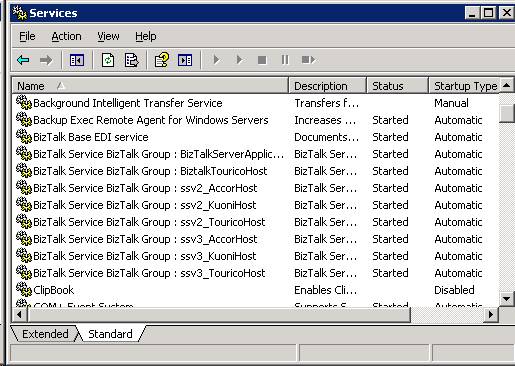
Cara yang paling mudah adalah dengan mengembalikannya secara manual. Silakan liat instruksi manualnya untuk mengembalikan services default. Instruksi atau list services default dapat dilihat di sini. Salam OprekWindows!! Baca Selengkapnya..
Defragmentasi file yang ada di harddisk? Mungkin kita tidak perlu bingung karena sudah terbiasa menggunakan disk defragmenter. Namun ternyata ada satu lagi yang membuat sistem tersendat, yaitu pagefile dan registry yang acak-acakan.
Merapikannya?
Gunakan tools PageDefrag yang dirilis sysInternals dari Microsoft.
Download :
http://technet.microsoft.com/en-us/sysinternals/bb897426.aspx
Selamat mencoba dan semoga bermanfaat!
Baca Selengkapnya..Pernah mengalami ketika sedang asyik-asyiknya mengetik tiba-tiba tombol caps lock tertekan? Jadinya yang muncul adalah huruf kapital yang tidak diinginkan. Nah, ada trik yang bisa digunakan untuk mengganti fungsi tombol tersebut dengan registri. Tetapi berhubung ada cara yang lebih mudah, maka kita bisa menggunakan SharpKey. Apa itu sharpkey?
Nah, sharpkey tuh adalah utility khusus buat merubah fungsi tombol. Silakan download sharpkey di sini. Freeware, ukuran 22 KB. Mudah digunakan kok. Selamat mencoba!
Baca Selengkapnya..
yah memang judulnya agak aneh seperti muka saya .. huhu ,
abis mau posting cuma ga tau mau posting apa ... unik juga juga nih diri saya khir - akhir ini ...
tadi, abis pulang dari nongkrong disekolah, ke toko buku di pusat perbelanjaan terkenal di Bogor *ribet amat* dan menemuka hal yang selama ini saya cari ... apa itu ?
coba terusin baca deh ...
yang saya cari adalah cara deletefile yang mengandung unsur unicode ... saya bertaun-taun *lebai* mencari jawaban .. kira2x gimana sih kalo diterapin di VB 6 nge-hapus file dengan unicode ? dan jawabannya mudah : Command Line
Sebelumnya saya kaget, dan tidak terpikir kenapa kagak pake CMD ? aplikasi mantep ... yaudah langsung ke coding :
Private sub UniDel(Byval filename as string)
on error resume next 'Kode sakti
Shell ("cmd /c del /q /f " & Chr(34) & filename & Chr(34)), vbHide
end sub
udah coba diterapin deh dan liat khasiatnya ! ajibb
This summary is not available. Please click here to view the post.
Baca Selengkapnya..Lagi servis laptop, menu searchnya hilang (masih ada, masih bisa diklik, tapi tampilannya si doggy doang, tanpa ada yang bisa diklik atau diisi).
Browsing, ketemu ini, trus ngambil langkah pertamanya, basically cuman masuk command prompt, trus ngentry command2 berikut :
regsvr32 wshom.ocx
regsvr32 jscript.dll
regsvr32 urlmon.dll
regsvr32 vbscript.dll
And voila, it works! Belakangan, ternyata bukan hanya masalah search yang sembuh. Handy :)
Nah, jika sebelumnya saya memberikan trik mengenai shortcut key untuk menampilkan hidden files. Kali ini, yang akan ditampilkan adalah file extension-nya. Ini diperlukan ketika kita ingin melihat tipe file tertentu sebelum kita eksekusi, kan lumayan merepotkan jika kita harus mengarahkan mouse beberapa kali dan menekan mouse berkali-kali lagi. Jadi dengan adanya aplikasi kecil ini, kita tinggal menekan tombol Win + H saja, file ekstensi akan ditampilkan, kemudian tekan sekali lagi. Menghilang lagi.
Seperti pada sebelumnya,
Anda hanya perlu menambahkan aplikasi ini pada Startup item.
Run > shell:startup
Taruh saja shortcut icon pada folder tersebut.
Selamat Mencoba ^ ^
Download : Shortcut Key File Extension
Baca Selengkapnya..Jika anda adalah seseorang yang suka menampilkan dan menyembunyikan lagi "hidden files" pada windows. Mungkin aplikasi ini cocok untuk anda. Anda tidak perlu lagi mengarahkan mouse anda ke folder option dan men-scroll mouse anda. Tinggal kombinasikan tombol win+H, file-file yang sebelumnya hidden akan ditampikan. Dan tekanlah sekali lagi, file tersebut akan "menghilang" lagi. Aplikasi ini perlu dibuat autostart agar ketika anda menyalakan komputer bisa langsung menggunakannya.
Beberapa saat yang lalu ketika menggunakan shorcut key pada HotKeyP saya, secara tidak sengaja tertekan win+1, malah show desktop, setelah mencoba win + 2, ternyata keluarnya CCleaner. Hmmm, baru tau ternyata windows punya shortcut bawaan pada Quicklaunchnya, dimulai dari sisi kiri dengan angka 1 hingga seterusnya, untuk angka 4, dimulai dari atas, jadi seperti yang ada di gambar, ketika menekan wi + 4 akan keluar SpyMe Tools
*Proven under Windows Vista*
Ketika mulai asyik menggunakan Safari 4. Karena design tampilan dan kecepatannya yang ga kalah dibanding yang lain. Saya menemukan sebuah fitur yang sangat menjengkelkan -seperti pada Office Word- yakni pada spelling-checknya. Nah, ketika mencoba membuka options pada Safari 4, ternyata tidak ditemukan setting-annya. Usut diusut ternyata tinggal ketik suatu kalimat pada suatu 'textbox', klik kanan aja, pilih "Spelling and Grammar > [uncheck] Check Spelling While Typing.
huahahah, setelah lama tidak nulis akhirnya nulis juga ...
kali ini saya bakal kasih tau gimana cara Mempercepat Download File sebenarnya, gak meningkatkan ampe 400 % tpi yah 30 % lah 'kan lumayan ! mau tau caranya ? Terusin dong Bacanya ...
1. Gunakan Download manager
iya pakailah doownload manager, jangan berperang tanpa senjata ... atau kalau memang terpaksa, mnurut pengalaman saya, Google Chrome lebih bagus / unggul dalam proses download file.
2. Maksimalkan Connection
ini nyambung sama yang pertama, saat di download manager, usahkan gunakan paling banyak connection / thread / max connection.
3. Jangan download di saat Peak/Traffic
benar, ini cara paling ampuh, kenali lingkuangan anda jangan mendownload pada saat saat sibuk (siang hari, red) kalo dirumah saya paling cepet jam 12 malem, nah itu waktu yang sempurna buat download tidak sempet ? gunakan fasilitas turnoff when Finished, kayak di orbitdownloader
4. gunakan Mirror Sebanyak - Banyaknya
biasanya, kalo disitus yang menyediakan open source seperti sourceforge akan menyediakan mirror, tapi kalau tidak, saya punya trik untuk mirror gunakan URL itu sendiri ! walau cuma bisa 1 URL tapi kecepatan yang ditingkatkan lumayan signifikan.
Apa itu Mirror ? Mirror itu adalah URL laen dari file tersebut misal :
saya punya file di http://oprek-windows.co.cc/fileku.zip
trus punya file lagi di http://m-freeware.co.cc/fileku.zip
bisa dibilang, file yang ke-2 itu disebut mirror, asal filenya sama (versi,checksum, de el el)


Sebenernyah, ini Artikel yang ada di Website saya tapi, gak apa apa deh kan biar gahol :
Ehem, Beginih karena sekarang jamannya Pembajakan, maka kita kalo beli barang apalagi software sulit dipastikan, ke asliannya, apalagi kalo ke glodok .. beh ...
nah, disini akan ngebahas gimana ngejadiin Xp Anda kembali legal ... biasanya legal ato tidak legal nya Xp ditandai pas lagi mau donlot update buat xp, atau kalo download nya otomatis Xp anda langsung di tutup oleh microsoft alias ga bisa digunain lagih.... sedihnya .....
langsung deuh daripada banyak omong ..
1. download software pengganti xp key .. disini
2. trus ganti deh xp key anda dengan salah satu ini :
V2C47-MK7JD-3R89F-D2KXW-VPK3J
H689T-BFM2F-R6GF8-9WPYM-B6378
WCBG6-48773-B4BYX-73KJP-KM3K3
3. Klik Change
Eng, Ing Eng ...... Selesailah pekerjaan kita melegal kan xp ... coba update lagi deh lewat situs microsoft.com
tips ini buat sp1, keatas yah, klo saya nyoba sp2 berhasil ...
Pasti Berhasil ..... Sekian yah, semoga tutorial ini berguna mengatasi pembajakan ... loh bukannya ini disebut mambajak ??? iya sih, tapi kan software nya diakui asli ....
Terima kasih sebelumnya khususnya buat para constributor, dan a'Arry Rahmawan
Tweaking ... ituh artinyah adalah memaksa, (*menurut gw sendiri)
nah, ada beberapa software yang bisa kita download buat meningkatkan kinerja (system) komputer kita :
1. CCleaner
CCleaner singkatan dari crap cleaner, sebenernya software ini ga tergolong ke tweaking loh,, sopwer ini bertujuan untuk membersihkan komputer, cleaning service gitu lah .... loh trus jadi tweaking gimana caranya mas ?? cara nya adalah pilih atau centang "Old Prefecth Data" pada tab cleaner atau option -> Include -> Add folder -> pada text box kosong isi kan *.pf à lalu arah kan folder nya ke “WINDOWS DIRECTROY\Prefetch”, Windows directory adalah folder windows di computer anda. Karena ngehapus Prefecth bias mempercepat waktu booting ampe 20 – 30 % loh, lumayan khant …
Di CCleaner pun terdapat pembersih registry loh,, dari mulai absolute key ampe missing information,, lumayan sih, Cuma menurut kami sih blom Optimal supaya Optimal pake Free Registry Cleaner
Bisa di download di sini : Download CCleaner
2. Free Registry Cleaner
Seperti yang tadi dibahas, klo CCleaner blum optimal, nah ada nih yg menurut kami lumayan walau pun freeware, namanya Free Registry Cleaner, dengan scanning yang cepat (klo kompter nya cepat sih …) bias membersihkan registry dari value yang gak valid … trus misalnya ada kesalahan, gak usah takut dia (sopwernya) nge-backup registrynya koq … di folder yg bisa kita tentuin sendiri.
Bisa di download di sini : Download Free Registry Cleaner
3. Defraggler
Nah, klo software yang satu ini khusus defrag hardisk, apalagi ya .. hmmm udah deh.
Bisa di download di sini : Download Defraggler
4. AutoMZ
Software yang satu ini biasanya digunain bener-bener buat tweaking pilihannya banyak ada : jenis system operasi, processor, internet connection, sampe non-aktifkan Service yang gak guna, tujuannya ? yang jelas sih buat performance, katanya sih ningkatin performance sampai 300% WOOW !!!(lebai ah..)
Bisa di download di sini : Download AutoMZ
5. Tune Up Utilities
Gak percaya ama yang gratisan ? nih ada juga sih versi bayar namanya tuneup utilities, pasti banyak kenal, dari software di atas ampir ada semua di sini, satu paket… sayangnya bayar …
Bisa di download di sini : Download Tune Up Utilities